
Why a spreadsheet is better than a pasted wall of URLs
Imagine collecting product references from a vendor directory. A plain text list can store the addresses, but a spreadsheet makes it possible to add columns such as Category, Owner, Follow-up, and Checked on. You can sort by source and filter out irrelevant entries without repeatedly visiting the same webpage.
The easiest route from URLPluck to Excel is CSV. CSV means comma-separated values: a plain-text file that spreadsheet applications can read. It is not a native .xlsx workbook, and exporting CSV does not create one automatically.
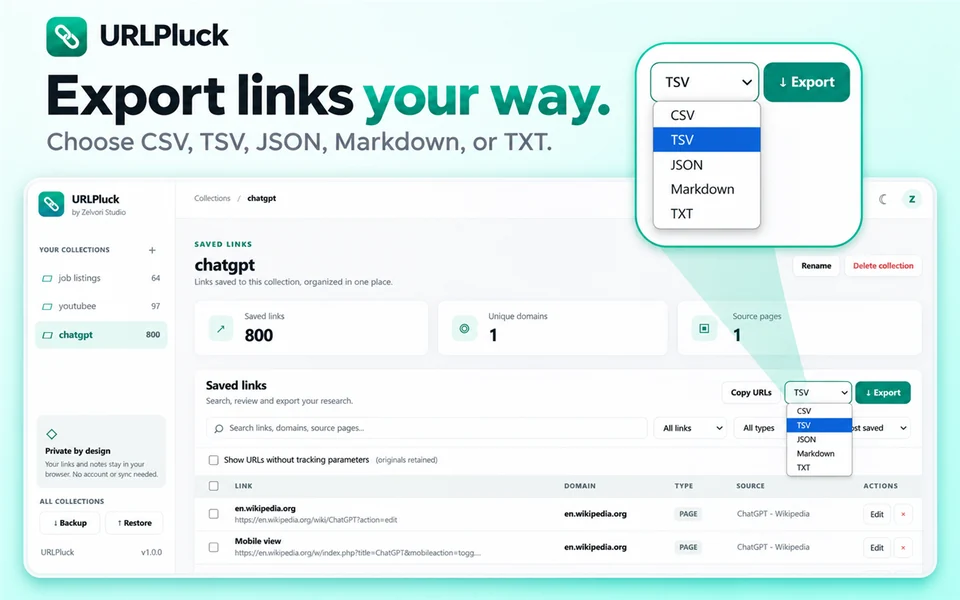
Export links in four steps
- Open the page in Chrome, load the links you need, and run URLPluck.
- Review the extracted links. Filter by domain, link type, or search term if necessary.
- Choose the CSV export option; save the generated file to your computer.
- In Microsoft Excel, go to Data → From Text/CSV, choose the file, preview its columns, and load it. In Google Sheets, use File → Import → Upload to import the CSV.
Microsoft describes the Text/CSV import workflow and Google documents its Sheets import workflow. Both are useful when you want control over separators and column types.
What the spreadsheet could look like
| Link text | URL | Source | Your notes |
|---|---|---|---|
| Installation guide | https://docs.example.org/install |
Docs directory | Review later |
| Pricing page | https://vendor.example.org/pricing |
Vendor list | Compare plans |
| PDF report | https://example.org/report.pdf |
Research portal | Download manually |
This is sample data illustrating what you can build after importing; the custom “Your notes” column is something you add in Excel or Sheets.
Make the exported file easier to work with
Keep link text. A descriptive label makes a sheet easier to scan than hundreds of opaque URLs. URLPluck can copy link details and supports structured export formats, so choose a format that preserves the fields important to your work.
Preserve the source page. When collecting from multiple domains, record where each link came from. This becomes valuable if a URL later redirects or disappears.
Remove irrelevant rows first. Navigation pages, social icons, and repeated header links can dominate a large export. Filter the list in the extension before opening the file.
Be careful with spreadsheet formulas. CSV files can contain text that some spreadsheet applications interpret as formulas. URLPluck's export implementation includes spreadsheet-oriented handling for formula-like values, but always review unfamiliar imported content, especially files received from someone else.
CSV vs TSV vs XLSX
| Format | Best use | Important detail |
|---|---|---|
| CSV | Excel, Google Sheets, data analysis | Text file; comma delimiter |
| TSV | Pasting or importing tabular data | Uses tab separators |
| XLSX | Excel workbooks with formatting and sheets | Created or saved in spreadsheet software |
URLPluck exports CSV and TSV directly. If you need a polished .xlsx workbook, import the CSV into Excel and save it as an Excel Workbook.
A practical next step
Take the exported links, add a Status column such as To review, Reviewed, or Used. You now have a lightweight research tracker without needing a full database. If you plan to visit more source pages later, store the relevant URLs in a URLPluck collection before your next session.
For the faster version of this walkthrough, see our existing CSV export tutorial.
Try URLPluck for free. Extract, review, save, and export URLs from the page you are browsing.
Sources and further reading
Official documentation and public product listings used to verify key points. Links open their original websites.