
The manual method works—until the page gets long
Copying the address of one hyperlink is easy: right-click and choose Copy link address. Copying 80 article links from a directory is a different story. You repeat the same action, lose track of what you have copied, and may accidentally capture the same URL twice.
If the links are already visible in the open Chrome tab, a page-level link extractor can collect them into one list. URLPluck is made for that kind of repetitive task.
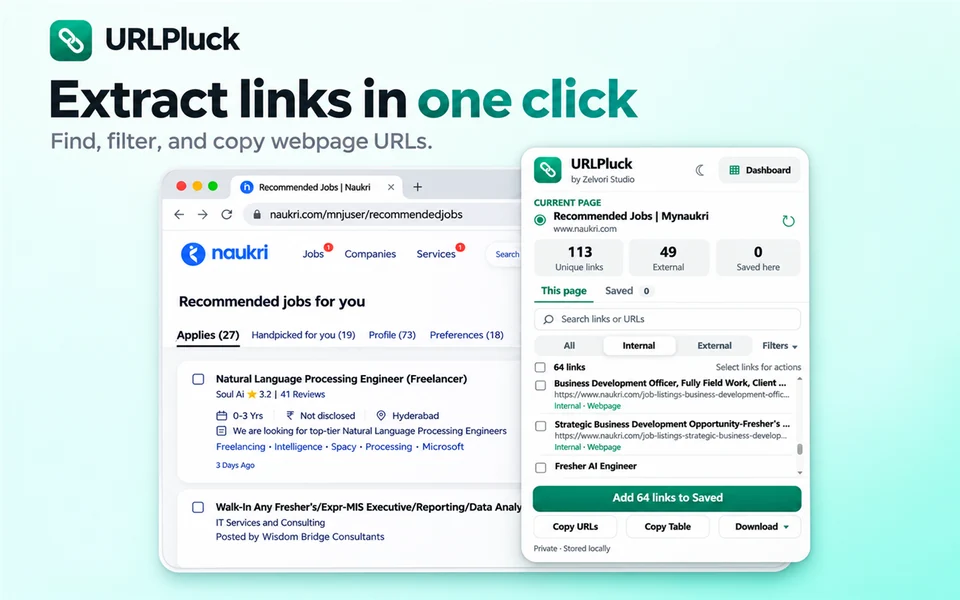
Two copying options worth knowing
Copy URLs is the direct option when your destination needs addresses only. Paste the result into a text editor, an issue tracker, a chat, or a script input.
Copy Table is more useful when context matters. Link text and other link details can help you distinguish a documentation link from a privacy policy or a promotional button. The receiving application determines how the pasted table is interpreted, so test it with a small batch if you are pasting into a spreadsheet.
How to copy a filtered list
- Open the directory, article, or resource page in Chrome.
- Load any content that appears only after scrolling or expanding sections.
- Open URLPluck and inspect the extracted hyperlinks.
- Use its search and filters to isolate what you want—such as documents or external references.
- Choose Copy URLs for a simple list or Copy Table for a more detailed paste.
- Paste into your destination and review the first few entries.
If you need the result tomorrow, save it to a named collection or export a file. Clipboard contents are convenient but easy to overwrite.
Why copying the page itself often fails
Pressing Ctrl+A and Ctrl+C copies selected visible page content, not necessarily the full destination addresses behind its hyperlinks. A visually short phrase such as “Download report” may point to a long PDF URL. Conversely, a webpage can contain links in navigation bars that are not obvious when you select the article text.
A real hyperlink is an HTML anchor with an href destination. MDN's anchor reference explains that the destination can be a page, file, or another resource. An extractor works with the link destinations, not just the text your eye sees.
A quick example
Suppose a university department publishes an HTML page with 45 resource links and 12 navigation links. You want the academic resources, not the surrounding site menu. Use a navigation filter as a first pass, then review the remaining entries and copy them as a list. If you need labels for your spreadsheet, use the table-oriented option instead.
Important: Link filters are not a guarantee of relevance. A useful resource may appear in a sidebar; a promotional URL may appear in the main article. Human review is still valuable.
Troubleshooting three common problems
- The result is incomplete. The site may load links only after interaction. Scroll, expand the list, then run the extractor again.
- There are too many unrelated links. Filter by domain, internal/external scope, or document type.
- The pasted result is hard to read. Use CSV or TSV instead of copying plain URLs, especially if the destination is Excel or Sheets.
For an even shorter version, see How to Copy All Links in Chrome. For longer-running projects, the next article explains why collections can beat the clipboard.
Try URLPluck for free. Extract, review, save, and export URLs from the page you are browsing.
Sources and further reading
Official documentation and public product listings used to verify key points. Links open their original websites.