
A useful link list has more than one destination
A researcher may want a list in Excel. A developer may want structured JSON. A writer may need Markdown links for a README. Someone preparing a quick message may need nothing more than one URL per line. Export formats matter because the next step shapes the file.
URLPluck's current extension supports CSV, TSV, JSON, Markdown, and TXT exports. It also offers clipboard copying. Here is how to choose without trial and error.
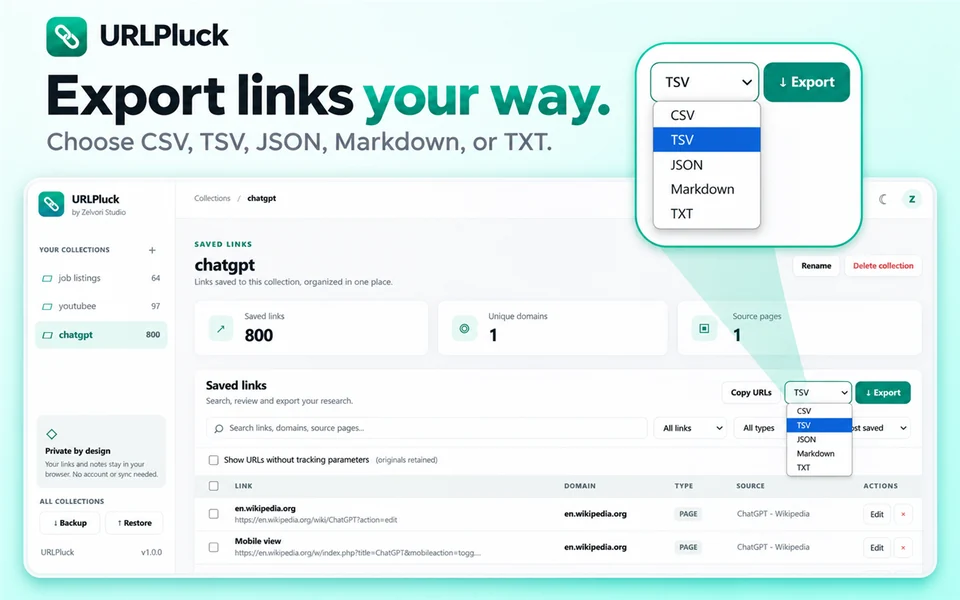
Choose by destination
| Format | Best for | Easy to edit with |
|---|---|---|
| CSV | Excel, Sheets, data cleanup | Spreadsheet apps |
| TSV | Tabular text and spreadsheet paste | Spreadsheet apps, text editors |
| JSON | Scripts, pipelines, structured data | Code editors |
| Markdown | Documentation, README files, notes | Markdown editors |
| TXT | Simple URL lists | Any text editor |
CSV and TSV: for rows and columns
Choose CSV when you plan to sort links, add notes, or compare several sources in a spreadsheet. TSV uses tabs instead of commas as field separators and is handy when your text contains many commas. Microsoft documents how Excel imports text and CSV files, including how to choose the appropriate delimiter.
Example of an illustrative CSV file:
Link text,URL
Documentation,https://example.org/docs
Release notes,https://example.org/releases
The exact column set of your URLPluck export depends on the selected output and available link details.
JSON: when another program will read the links
JSON preserves structured fields rather than presenting everything as a display-oriented string. Developers can parse a JSON export with JavaScript, Python, or other tools and map the data into their workflows.
Illustrative JSON structure:
[
  {"text": "Documentation", "url": "https://example.org/docs"},
  {"text": "Release notes", "url": "https://example.org/releases"}
]
This is a conceptual example, not a byte-for-byte promise about URLPluck's export schema. Inspect the exported file before writing code that depends on its field names.
Markdown: links ready for writing
Markdown is convenient in READMEs, knowledge bases, and project notes. A Markdown link normally looks like this:
[Documentation](https://example.org/docs)
If your destination supports Markdown, readers see a descriptive label rather than a bare URL. This is often much easier to scan when creating reading lists or project documentation.
TXT: simple and portable
A TXT export is the best fit when you only need plain addresses, one per line. It works well for sending a list to a colleague or feeding URLs into an existing script that expects text input. There is no column structure to preserve.
Avoid three common mistakes
- Expecting CSV to behave like an Excel workbook. It does not store multiple formatted sheets; import and save as
.xlsxwhen you need those features. - Assuming a URL export downloads the target files. A link to a PDF is still just a link; URLPluck does not bulk-download the PDFs behind it.
- Forgetting the source. If you plan to audit results later, preserve origin or notes alongside the addresses whenever the export supports that information.
For repeated projects, keep links in URLPluck's named collections and export them when the destination format becomes clear. That way, you do not have to decide whether the final output will be CSV, JSON, or Markdown while you are still collecting the sources.
Try URLPluck for free. Extract, review, save, and export URLs from the page you are browsing.
Sources and further reading
Official documentation and public product listings used to verify key points. Links open their original websites.